
Run The Sims 1 Complete on Parallels Apple Silicon

Run The Sims 1 Complete on Parallels Apple Silicon
The Sims Legacy Collection on Steam currently does not to work properly on Windows 11 ARM64 in Parallels, due to Vulkan/graphics driver compatibility issues. Installing The Sims Complete Collection from disc also fails because of old installer and disc copy-protection problems.
I also haven't been able to get a working Wineskin wrapper installation of The Sims Legacy Collection, or The Sims Complete on an Apple Silicon computer due to various incompatibilities. However, I managed to get The Sims working through Parallels.
This guide shows how I got The Sims Complete Collection running on Parallels for Apple Silicon and linked it to Steam so Steam recognises it as The Sims Legacy Collection, allowing playtime tracking etc. to work.
Requirements
Apple Silicon-based computer (M1-M5)
Windows 11 ARM64 (Parallels)
An installed directory of The Sims Complete from another system/Wineskin wrapper
The Sims Legacy Collection purchased through Steam (If you want to track playtime and launch through Steam)
A NoCD executable of The Sims Makin' Magic from GameCopyWorld (The Sims: Makin' Magic v1.9 Fixed EXE) - Graphic popup warning!
Installation
Directory setup
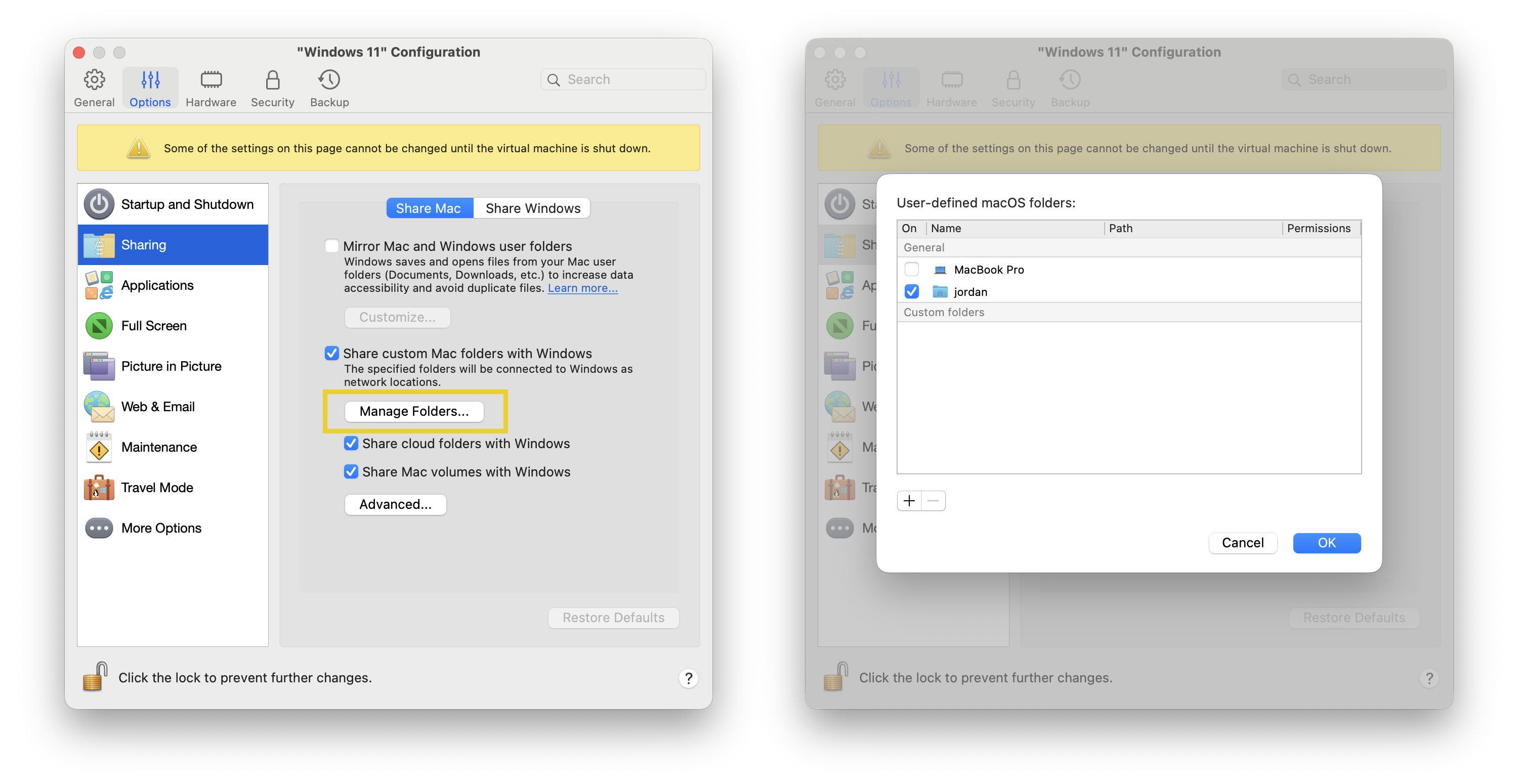
Open the configuration for your Windows 11 VM in Parallels, then navigate to Options > Sharing.
Add a folder, or your macOS home directory to share to Windows 11, this will be used to copy files from macOS to Windows 11.
Add your copy of The Sims Complete to the shared folder (e.g. sourced from C:\Program Files\Maxis\The Sims on another computer where the game is installed).
Game Installation
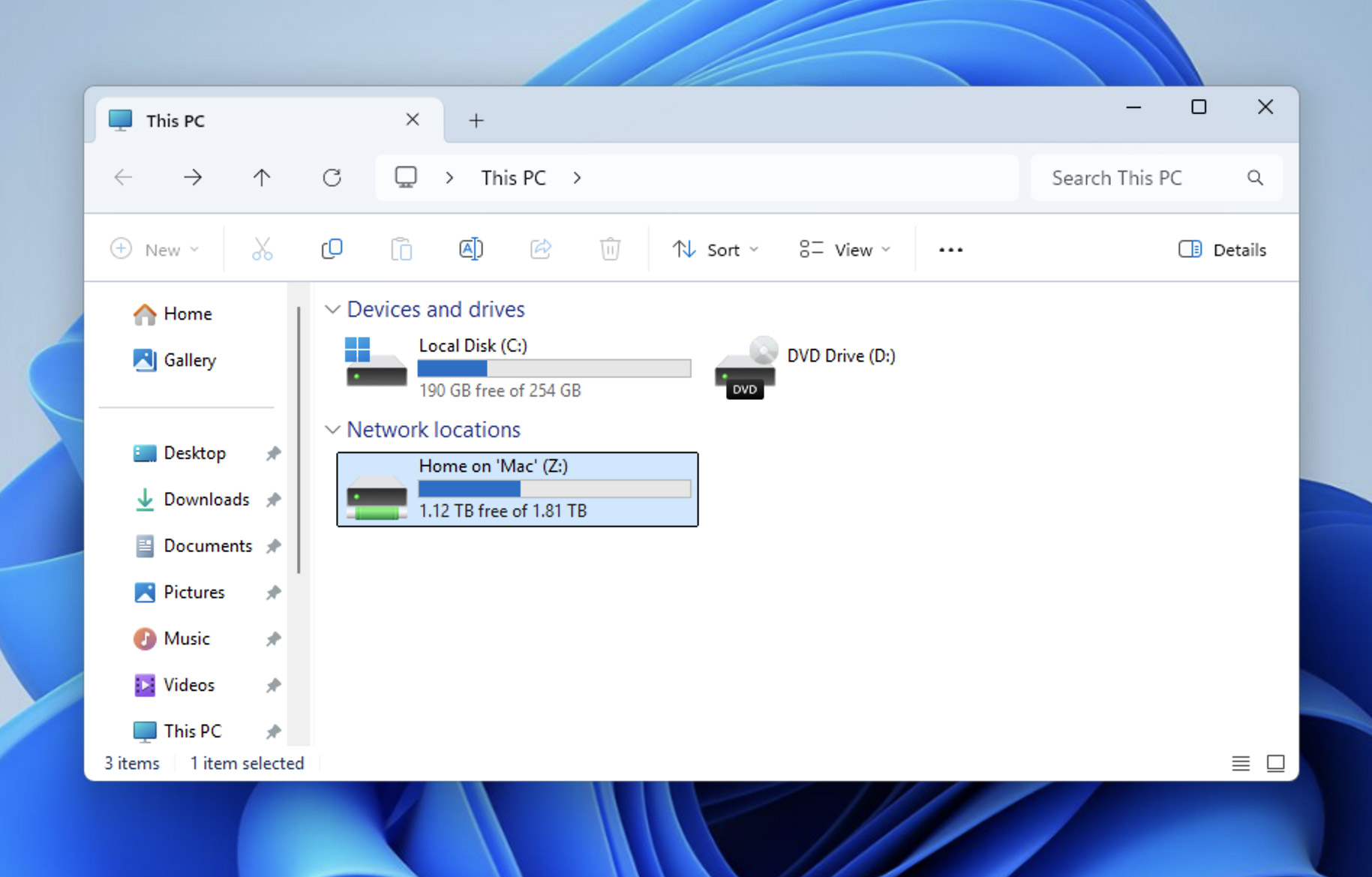
Start Windows 11 via Parallels, and open This PC through File Explorer. You will see that the shared folder you setup in the Parallels config now shows up as a shared drive. Open the shared folder/drive and then open The Sims directory that you copied into it earlier.
Copy the The Sims directory anywhere you'd like it to be installed on your Windows drive,
e.g. C:\Games\The Sims.Inside your The Sims directory, replace the Sims.exe with the fixed NoCD exe downloaded from GameCopyWorld.
Steam Linking:
If you want to link the game/have it recognised as The Sims Legacy Collection through Steam you need to perform these extra steps:
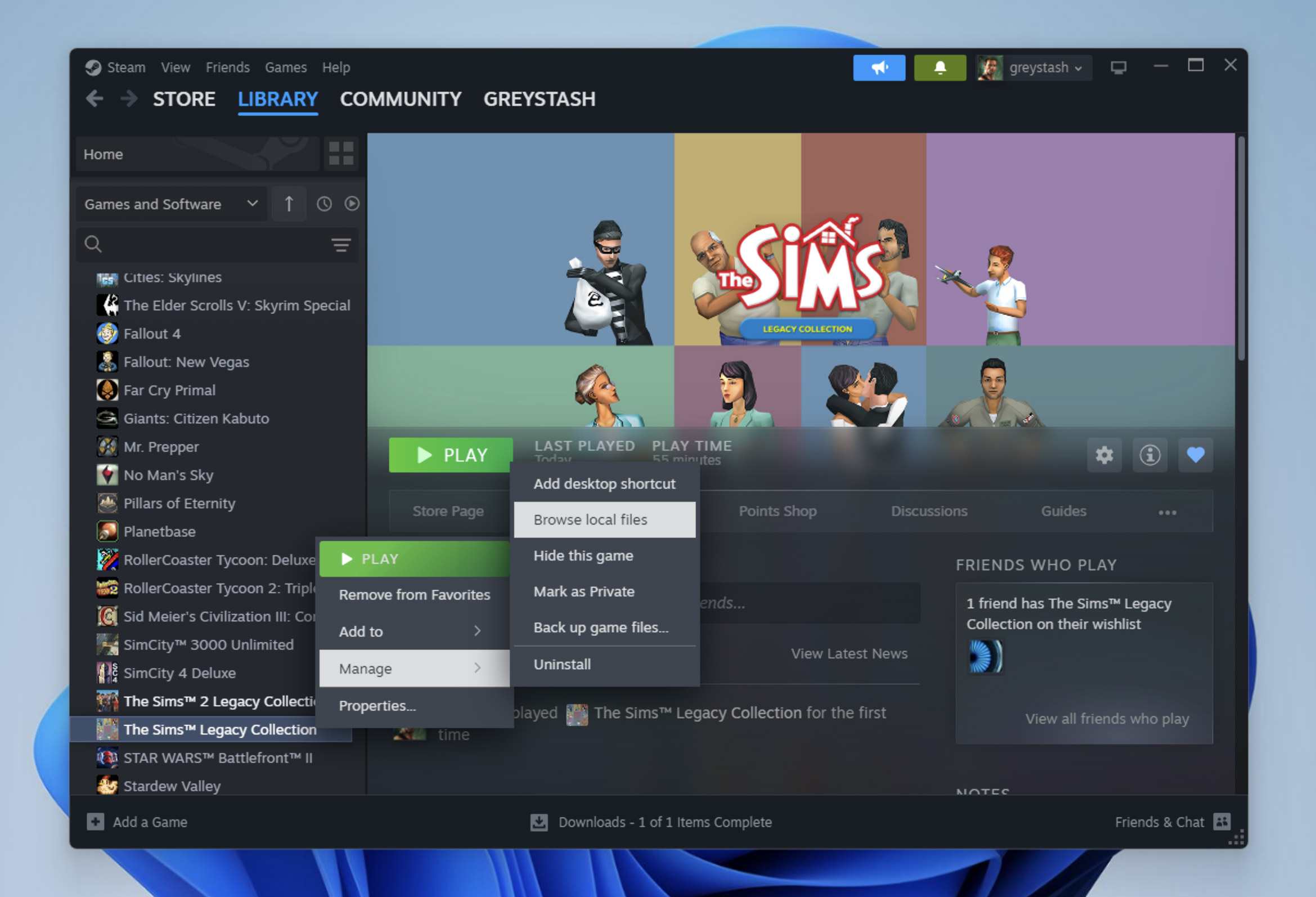
1. Install The Sims Legacy Collection through Steam
2. Once it's installed, right-click on the game entry in your library and select Manage > Browse Local Files.
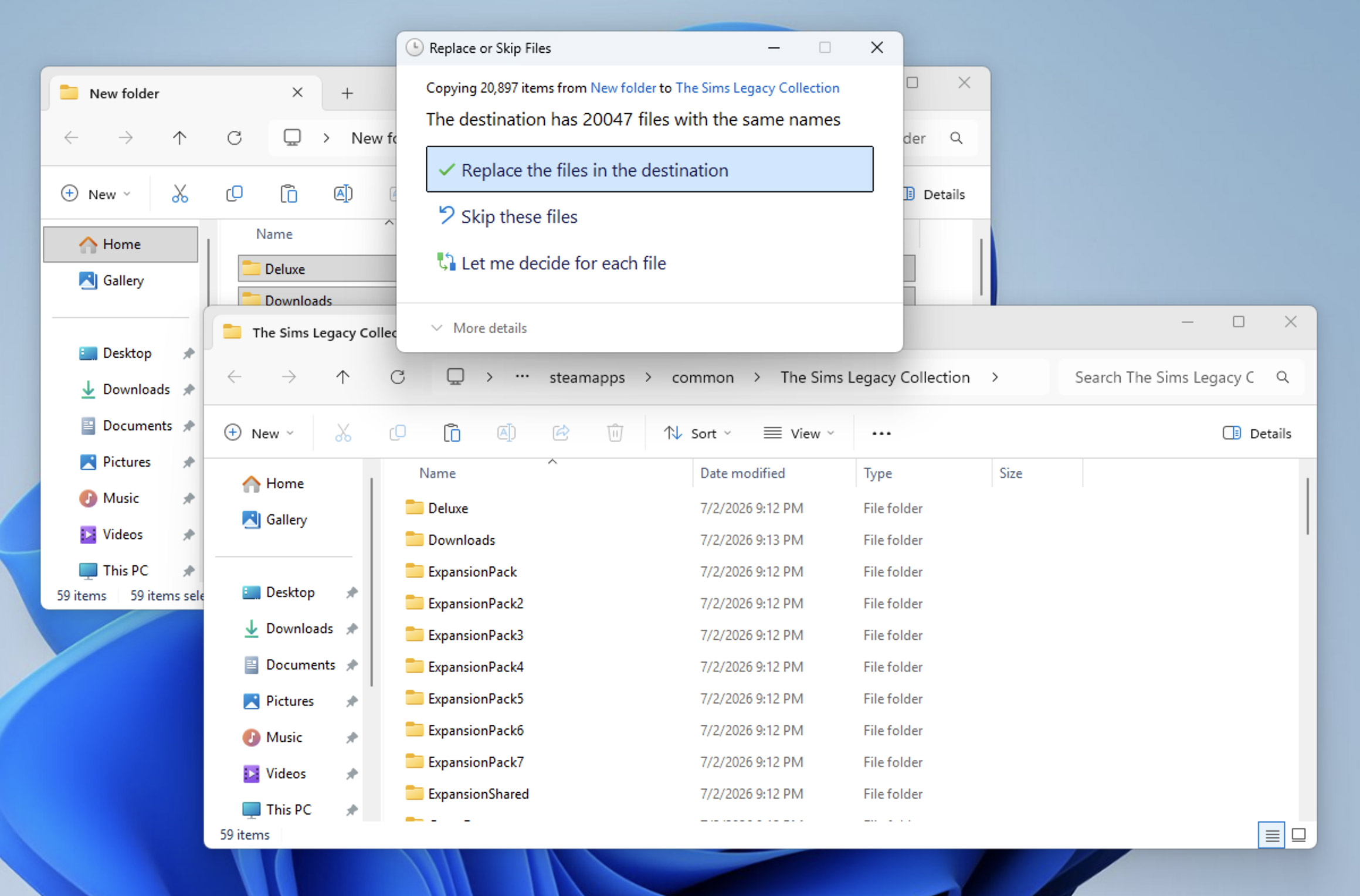
3. Select all files from the original (non-Steam) installation and copy them, then paste them into the Steam installation directory and replace all files.
Compatibility Settings
Inside the game directory, right-click on the Sims.exe, select Properties, then Compatibility. Apply the following settings:
Compatibility mode: Windows XP (Service Pack 2)
Reduced color mode: 16-bit
Run this program as administrator: TrueClick Apply to save these settings.

DDrawCompat
I recommend downloading DDrawCompat as this fixes some graphical and performance issues with the game.
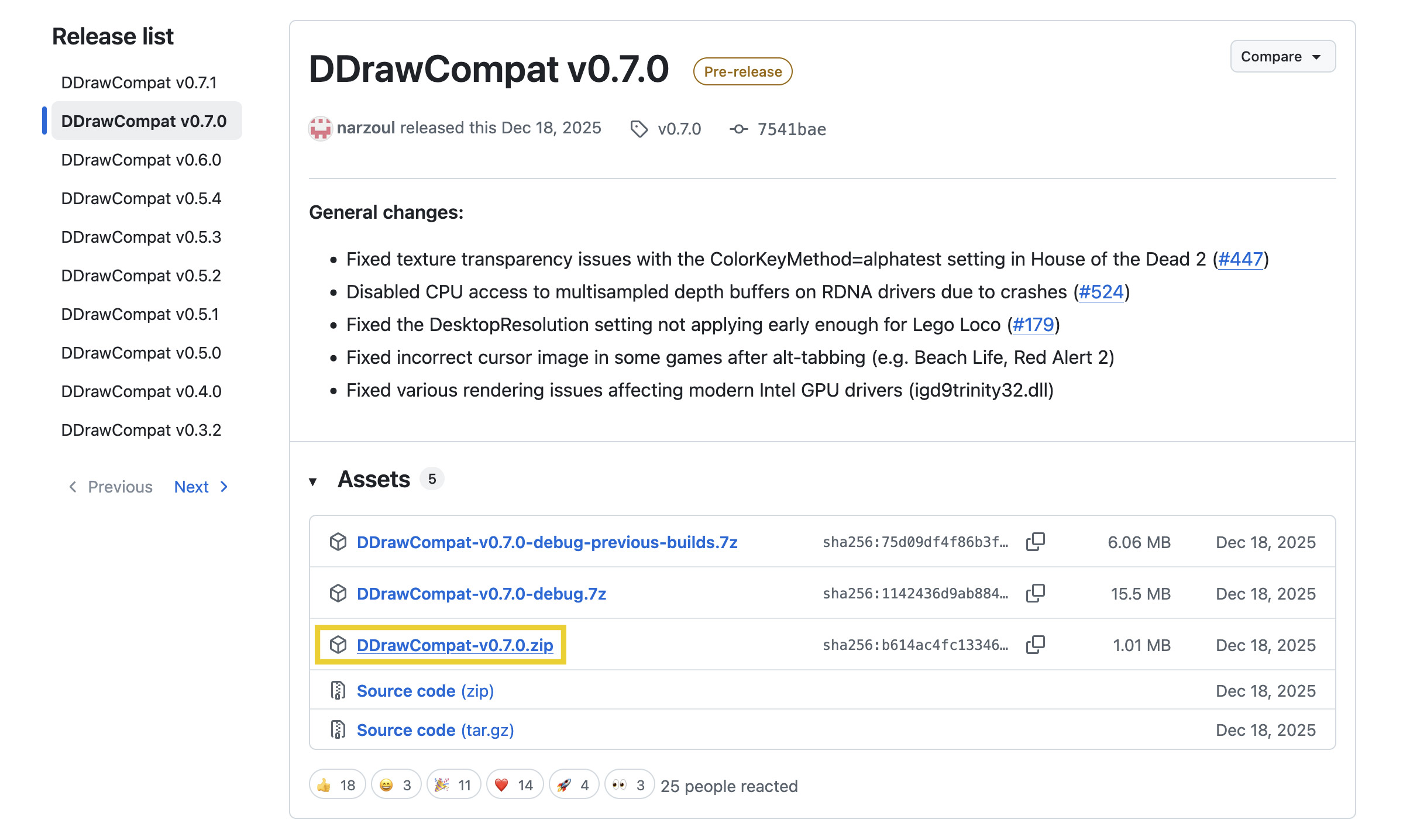
Download DDrawCompat here, get the most recent release (e.g. DDrawCompat-v0.7.0.zip), then un-zip the file and place it inside your game directory (alongside Sims.exe)
Registry modification
Open a text editor program and paste the following into it:
Windows Registry Editor Version 5.00

[HKEY_LOCAL_MACHINE\SOFTWARE\WOW6432Node\Maxis]

[HKEY_LOCAL_MACHINE\SOFTWARE\WOW6432Node\Maxis\The Sims]
"SIMS_SKU"=dword:00000001
"SIMS_MUSIC"="C:\\Games\\The Sims\\Music"
"SIMS_SOUND"="C:\\Games\\The Sims\\SoundData"
"SIMS_DATA"="C:\\Games\\The Sims"
"InstallPath"="C:\\Games\\The Sims"
"Version"="1.2"
"Language"=dword:00000409
"SIMS_LANGUAGE"="English"
"SIMS_OTHERLANGUAGE"="English"
"Installed"="1"
"EPInstalled"="1"
"EP2Installed"="1"
"EP3Installed"="1"
"EP4Installed"="1"
"EPDInstalled"="1"
"EP5Installed"="1"
"EP6Installed"="1"
"EP7Installed"="1"
"EP8Installed"="1"
"EP3Patch"="2"
"EPDPatch"="1"
"EP5Patch"="1"
"SIMS_GAME_EDITION"="255"
"TELEPORT"="1"
"SIMS_CURRENT_NEIGHBORHOOD_NUM"="1"
"SIMS_CURRENT_NEIGHBORHOOD_PATH"="UserData"

[HKEY_LOCAL_MACHINE\SOFTWARE\WOW6432Node\Maxis\The Sims Complete]

[HKEY_LOCAL_MACHINE\SOFTWARE\WOW6432Node\Maxis\The Sims Complete\Locale]
@="en_US"

[HKEY_LOCAL_MACHINE\SOFTWARE\WOW6432Node\Maxis\The Sims Complete Collection]

[HKEY_LOCAL_MACHINE\SOFTWARE\WOW6432Node\Maxis\The Sims Complete Collection\1.00.000]
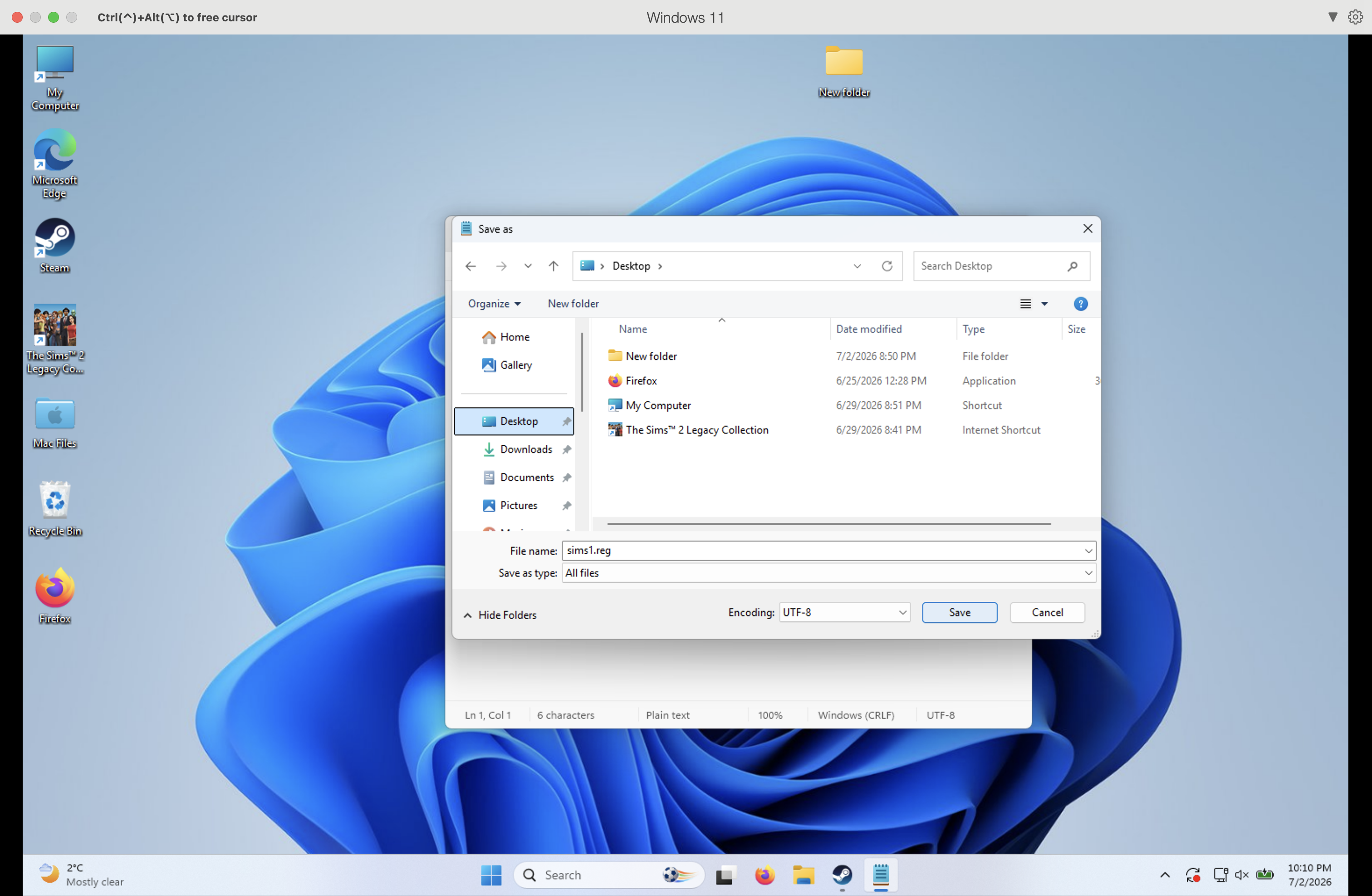
Save this file and name it sims1.reg. This must be done with a plain text editor like Notepad (save format as "All Files") or Sublime Text.
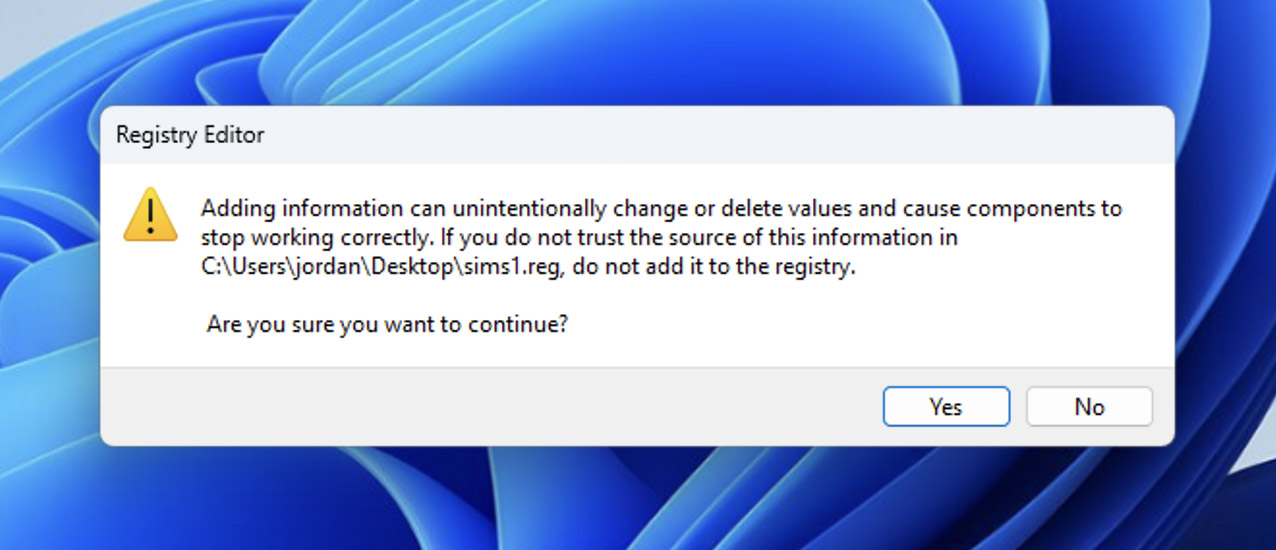
Open the sims1.reg file you saved and click Yes. This adds the game installation data to Windows' registry so it's recognised as a valid installation.
All done!!
Launch The Sims either from the Sims.exe file/a shortcut, or through Steam.



2 Comments
Henry
04 October 2026
Thank you so much! I have spent countless hours trying to get the game to work on my MacBook. I bought Parallels, the Legacy Collection on Steam and none of it's worked! Followed this and it's working perfectly - thanks so much!
Greystash - Admin
04 October 2026
No worries I'm glad it worked for you!
Post a Comment
Replying to . Cancel reply